---
title: "Using CSS Themes in HTML5 Uploader"
canonical: https://www.aurigma.com/docs/us8/using-css-themes-for html5-uploader.htm
product: "Upload Suite 8"
---
# Using CSS Themes in HTML5 Uploader
Supported technologies: 
HTML5 Uploader allows changing its appearance using a CSS theme file.
As an example, you can use the `SampleTheme.css` skin included in Upload Suite SDK. To change HTML5 Uploader appearance just add a link to your CSS file.
```
``````aspx-cs
``````
render();
?>
```
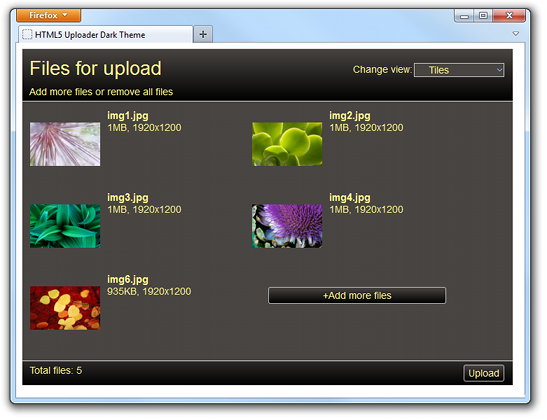
As the result, HTML5 Uploader will look like the following screenshot.
## Customizing HTML5 Uploader Skin
You can use `SampleTheme.css` as a base to create your own skin. To do this, find `SampleTheme.css` in the `C:\Program Files\Aurigma\Upload Suite 8.5.81\HTML5-Flash\Html5UploaderThemes\` folder and modify styles. The following steps demonstrate how it can be done.
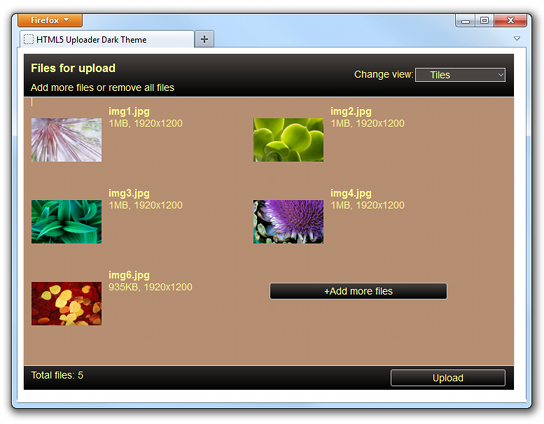
1. Modify styles in `SampleTheme.css` and put images or fonts, used in a new look and feel, on your website. Classes in the CSS file, which contain settings of a user interface, are self-documented. It will not be so hard to understand settings of what element are stored in a particular class. As an example, we change the title font, make the **Send** button bigger, and change the **Upload Pane** background color. See snippets of the `SampleTheme.css` file below.
```
/* Change font of the title */
.titleText {font-weight: bold;}
/* Make the Upload button wider */
.sendButton {width: 150;}
/* Change the Upload Panel background */
.tileList{background-color: #b68f72;}
```
2. Upload the `SampleTheme.css` file on your website.
3. Specify a URL to this file as a value of the flashControl.themeUrl[ThemeUrl (ASP.NET)](https://www.aurigma.com/docs/us8/FH_P_Aurigma_ImageUploaderFlash_FlashControl_ThemeUrl.htm.md)[ThemeUrl (PHP)](https://www.aurigma.com/docs/us8/FH_P_P_FlashControl_ThemeUrl.htm.md)[themeUrl (JavaScript)](https://www.aurigma.com/docs/us8/FH_P_J_$au_flashControl_themeUrl.htm.md) property. See code samples above.
4. Run your application and make sure that HTML5 Uploader looks like the following screenshot.
## See Also
### Reference
- flashControl.themeUrl Property[ThemeUrl (ASP.NET)](https://www.aurigma.com/docs/us8/FH_P_Aurigma_ImageUploaderFlash_FlashControl_ThemeUrl.htm.md)[ThemeUrl (PHP)](https://www.aurigma.com/docs/us8/FH_P_P_FlashControl_ThemeUrl.htm.md)[themeUrl (JavaScript)](https://www.aurigma.com/docs/us8/FH_P_J_$au_flashControl_themeUrl.htm.md)
### Manual
- [HTML5/Flash Uploader User Interface](https://www.aurigma.com/docs/us8/image-uploader-flash-user-interface.htm.md)
- [Customizing Appearance in HTML5/Flash Uploader](https://www.aurigma.com/docs/us8/customizing-appearance-iuf.htm.md)